
How to create a static coming soon page?
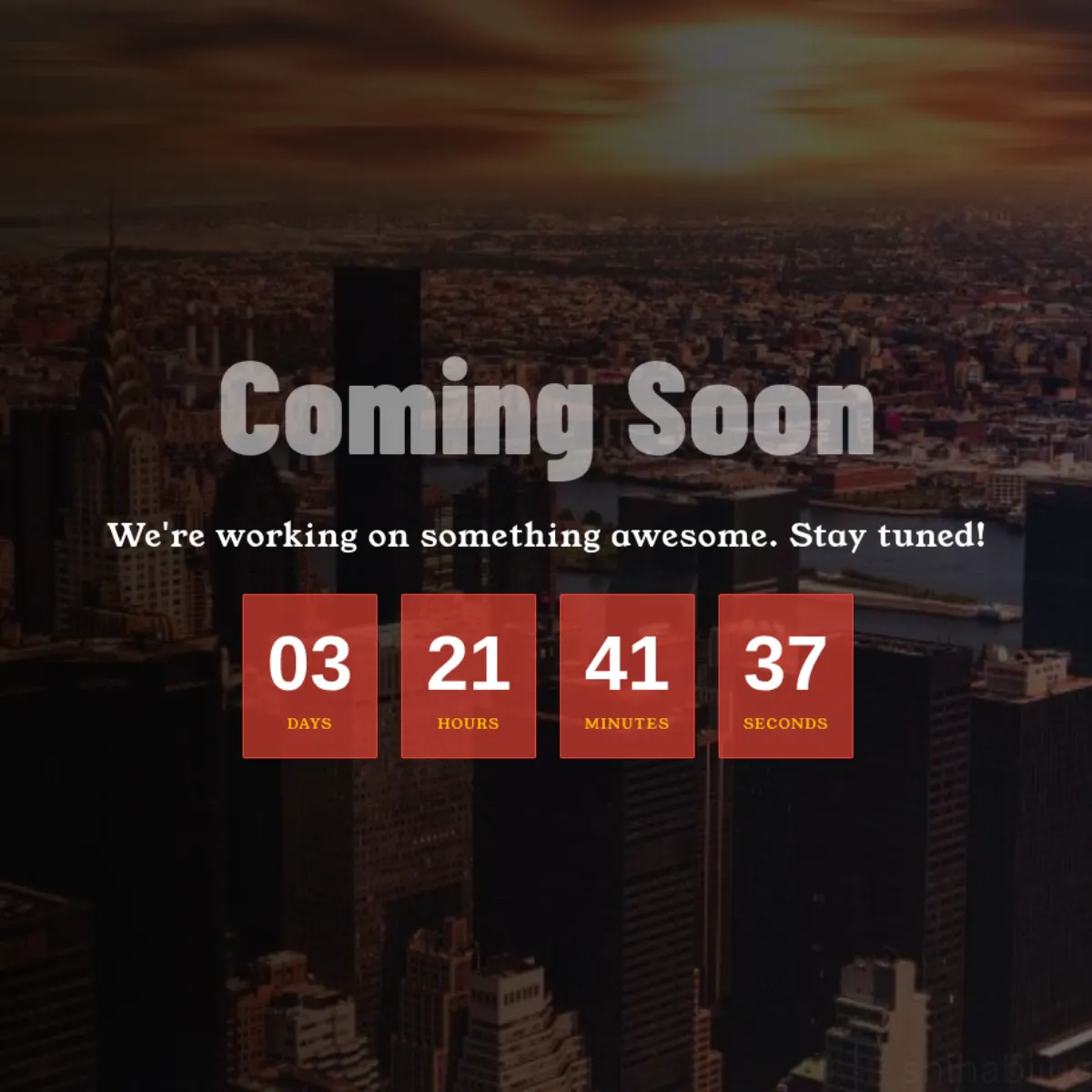
To create a coming soon template or page, the most important part is the countdown timer. You can come up with any styles but your audience may want to see the remaining time to go live. This post will show you how to create a static coming soon page only using HTML & CSS. I used a few lines of JavaScript only for the countdown timer
Before you start, see the live preview of the coming soon page that you are going to build.
See the live preview →
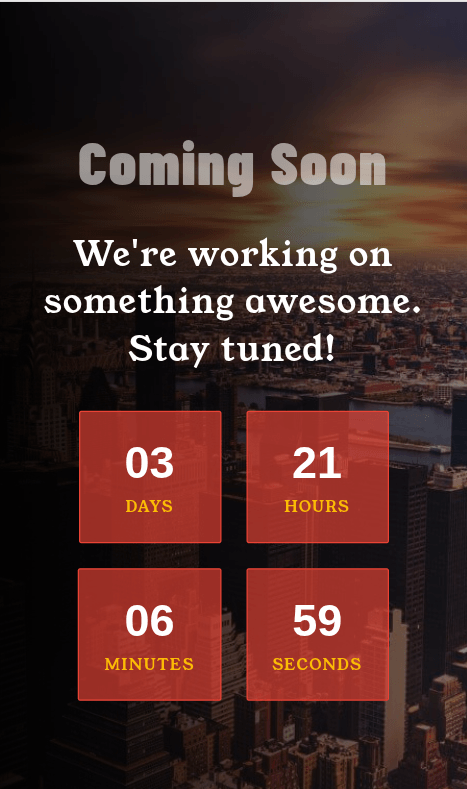
On a mobile device, it will look like this below screenshot
My Project Structure
coming-soon/    (root folder)
├── index.html
├── style.css
├── script.js
└── img/
    └── cityscape.jpg
Above is my project structure but yours could be different.
Find its code below.
HTML
<!DOCTYPE html>
<html lang="en">
  <head>
    <meta charset="UTF-8" />
    <meta name="viewport" content="width=device-width, initial-scale=1.0" />
    <link rel="shortcut icon" href="favicon.png" type="image/x-icon" />
    <!-- google fonts -->
    <link rel="preconnect" href="https://fonts.googleapis.com" />
    <link rel="preconnect" href="https://fonts.gstatic.com" crossorigin />
    <link
      href="https://fonts.googleapis.com/css2?family=Barlow+Condensed:wght@900&family=Young+Serif&display=swap"
      rel="stylesheet"
    />
    <!-- google fonts end -->
    <link rel="stylesheet" href="style.css" />
    <title>Coming Soon Template</title>
  </head>
  <body>
    <section class="container">
      <h1>Coming soon</h1>
      <p>We're working on something awesome. Stay tuned!</p>
      <div id="countdown">
        <div class="countdown-item">
          <span id="days">00</span>
          <p>Days</p>
        </div>
        <div class="countdown-item">
          <span id="hours">00</span>
          <p>Hours</p>
        </div>
        <div class="countdown-item">
          <span id="minutes">00</span>
          <p>Minutes</p>
        </div>
        <div class="countdown-item">
          <span id="seconds">00</span>
          <p>Seconds</p>
        </div>
      </div>
      <!-- .countdown -->
    </section>
    <!-- .container -->
    <script src="script.js"></script>
  </body>
</html>
<!--  -->
CSS
*,
*::before,
*::after {
  -webkit-box-sizing: border-box;
  box-sizing: border-box;
}

body {
  font-family: "Young Serif", serif;
  font-size: 16px;
  margin: 0;
  padding: 0;
  display: -webkit-box;
  display: -ms-flexbox;
  display: flex;
  -webkit-box-pack: center;
  -ms-flex-pack: center;
  justify-content: center;
  -webkit-box-align: center;
  -ms-flex-align: center;
  align-items: center;
  width: 100vw;
  height: 100vh;
  background-color: #222222;
  background:
    -webkit-gradient(
      linear,
      left top,
      right top,
      from(rgba(0, 0, 0, 0.95)),
      to(rgba(0, 0, 0, 0.47))
    ),
    url("./img/cityscape.jpg") no-repeat center;
  background:
    linear-gradient(to right, rgba(0, 0, 0, 0.95), rgba(0, 0, 0, 0.47)),
    url("./img/cityscape.jpg") no-repeat center;
  background-size: cover;
}

section.container {
  text-align: center;
  padding: 15px;
}
section.container h1 {
  font-family: "Barlow Condensed", sans-serif;
  font-weight: 900;
  letter-spacing: 1.5px;
  color: rgba(255, 255, 255, 0.55);
  text-transform: capitalize;
  margin: 0;
  font-size: 3em;
}
@media (min-width: 768px) {
  section.container h1 {
    font-size: 7em;
  }
}
section.container p {
  font-size: 1.7em;
  letter-spacing: 1.1px;
  color: #ffffff;
  margin-bottom: 20px;
}
section.container #countdown {
  display: -webkit-box;
  display: -ms-flexbox;
  display: flex;
  -webkit-box-pack: center;
  -ms-flex-pack: center;
  justify-content: center;
  -webkit-box-align: center;
  -ms-flex-align: center;
  align-items: center;
  -ms-flex-wrap: wrap;
  flex-wrap: wrap;
}
section.container #countdown .countdown-item {
  margin: 10px;
  padding: 20px;
  font-size: 1.5rem;
  background-color: rgba(234, 67, 53, 0.65);
  border: 1px solid #ea4335;
  border-radius: 2px;
  min-width: 114px;
}
section.container #countdown .countdown-item span {
  font-family: Arial, sans-serif;
  font-weight: bold;
  color: #ffffff;
  font-size: 1.5em;
}
@media (min-width: 768px) {
  section.container #countdown .countdown-item span {
    font-size: 2.7em;
  }
}
section.container #countdown .countdown-item p {
  margin: 5px 0 0;
  font-size: 0.5em;
  color: #fbbc05;
  text-transform: uppercase;
}
JavaScript
// Set the launch date for your website (YYYY, MM-1, DD, HH, MM, SS)
const launchDate = new Date(2026, 3, 1, 12, 0, 0);

function updateCountdown() {
  const currentDate = new Date();
  const timeDifference = launchDate - currentDate;

  const days = Math.floor(timeDifference / (1000 * 60 * 60 * 24));
  const hours = Math.floor(
    (timeDifference % (1000 * 60 * 60 * 24)) / (1000 * 60 * 60),
  );
  const minutes = Math.floor((timeDifference % (1000 * 60 * 60)) / (1000 * 60));
  const seconds = Math.floor((timeDifference % (1000 * 60)) / 1000);

  document.getElementById("days").textContent = days
    .toString()
    .padStart(2, "0");
  document.getElementById("hours").textContent = hours
    .toString()
    .padStart(2, "0");
  document.getElementById("minutes").textContent = minutes
    .toString()
    .padStart(2, "0");
  document.getElementById("seconds").textContent = seconds
    .toString()
    .padStart(2, "0");
}

setInterval(updateCountdown, 1000);
updateCountdown();
Download and store the background image in the “img” folder.

That’s it!
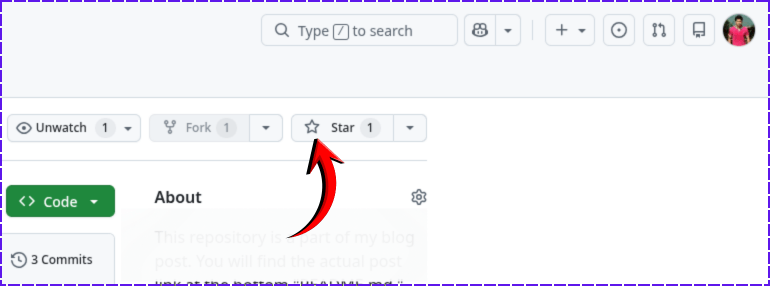
If you found this project helpful, please support me by hitting the 'Star' icon on my GitHub Repository. Please use the following link.
Give it a STAR →
If you’re comfortable with terminal, you can clone the entire repository using the command below.
git clone https://github.com/shihabiiuc/coming-soon.gitYou can also manually download the project folder
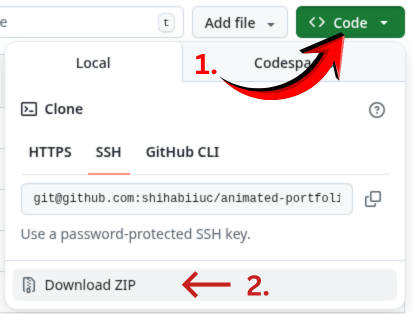
Click the “Code” buttton and then “Download ZIP”
Either way works.
How to change the time?
To change the time, you just need to change the first line:
const launchDate = new Date(2026, 9, 30, 12, 0, 0);As you see above the line of code, I am using the Date() constructor to create the launch date. The first part is the year (2026), and the second part is the month (9). And then date/day, hour, minute & seconds respectively.
However, the month-index is 0 (zero) based. For January, it would be 0, for February, it would be 1, for December, it would be 11. And so on and so forth.
Extra Talks
This JavaScript is only used for the countdown timer. However, it does not require any dependencies or libraries. It’s plain/vanilla JavaScript and can work alone.
If you want to create the similar coming soon template using wordpress and elementor, please see this post. On WordPress, you can also use SeedProd and many other plugins.
Do you need web design help? Feel free to reach out.
I am a freelance web developer helping other developers, designers, and clients. If you need web design-related help, feel free to reach out to me. Always a reasonable price and easy to communicate with.