
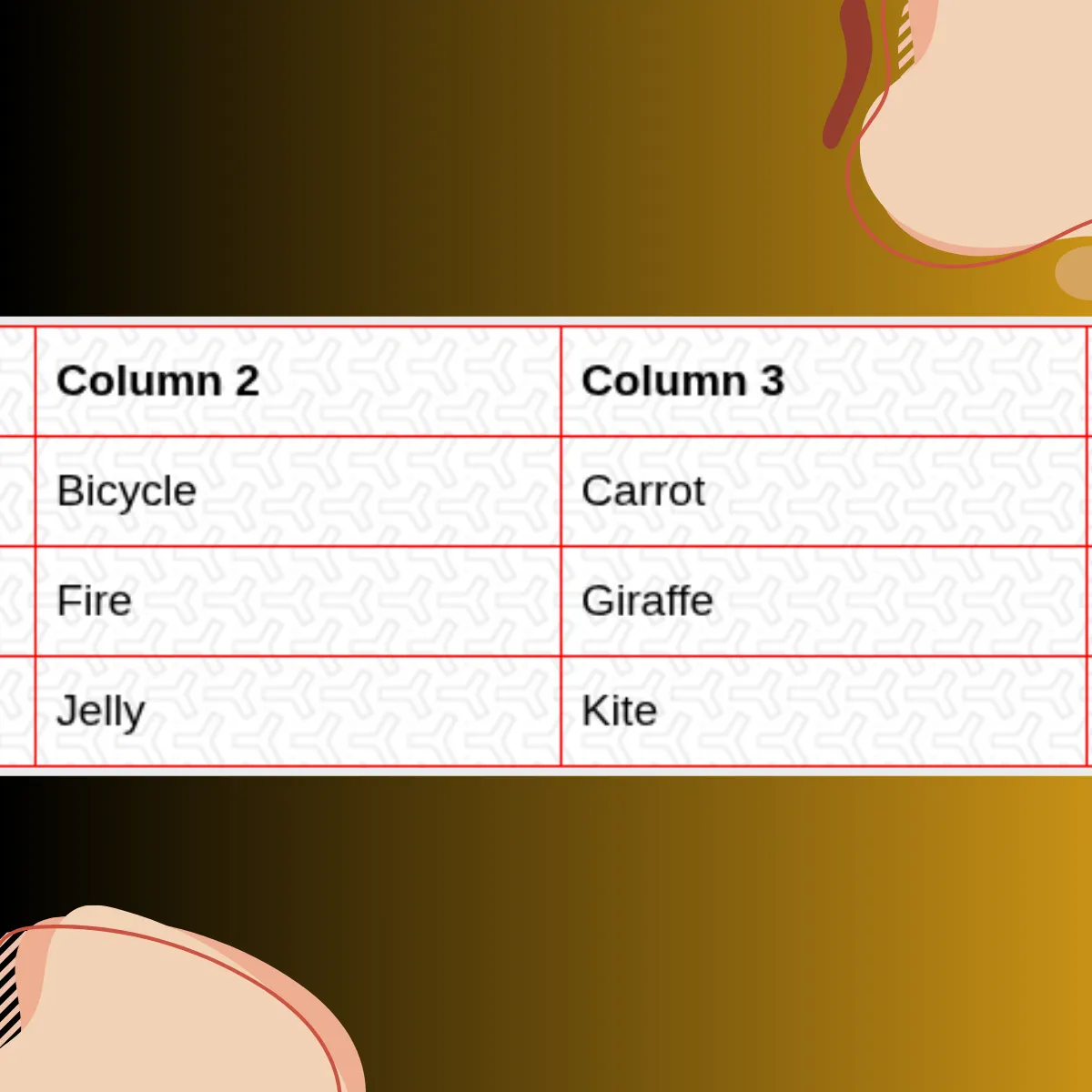
How to add background color & background image to an HTML table?
In this post, I will show you how to add background color to an HTML table. Also, I will give you a couple of examples including hover effects. Later in this post, you’ll also see how to add a background image to the same table.
You can also check the example of the tables in the link below.
Live Preview
Did you find what you were looking for in the demo? Let’s get started.
How to add background color to an HTML table?
Throughout this post, I will use the following HTML markup for the table.
<table>
  <tr>
    <th>Column 1</th>
    <th>Column 2</th>
    <th>Column 3</th>
    <th>Column 4</th>
  </tr>
  <tr>
    <td>Apple</td>
    <td>Bicycle</td>
    <td>Carrot</td>
    <td>Dog</td>
  </tr>
  <tr>
    <td>Elephant</td>
    <td>Fire</td>
    <td>Giraffe</td>
    <td>House</td>
  </tr>
  <tr>
    <td>Ice</td>
    <td>Jelly</td>
    <td>Kite</td>
    <td>Lemon</td>
  </tr>
</table>
I have a header in this markup but you may don’t have it. But this is not a problem.
Basic CSS
table {
  border-spacing: 0;
  border-collapse: collapse;
  margin: 0 auto;
  width: 100%;
  max-width: 900px;
  text-align: left;
}
table tr td,
table tr th {
  border: 1px solid #ff0000;
  padding: 12px 8px;
}
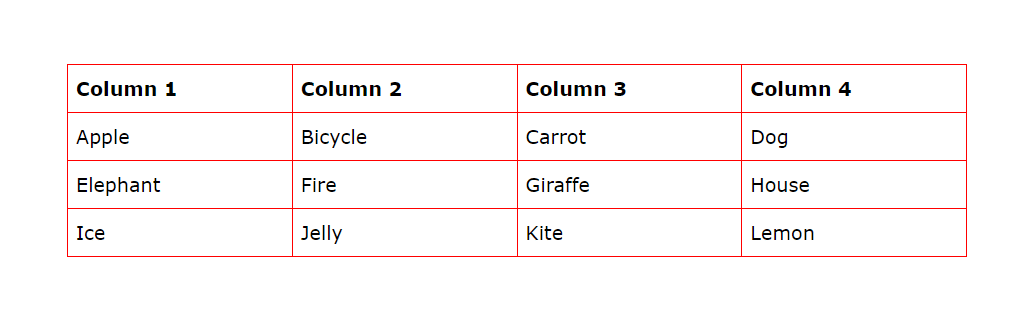
With the above HTML & CSS, your table will look like the following screenshot.
Add background-color
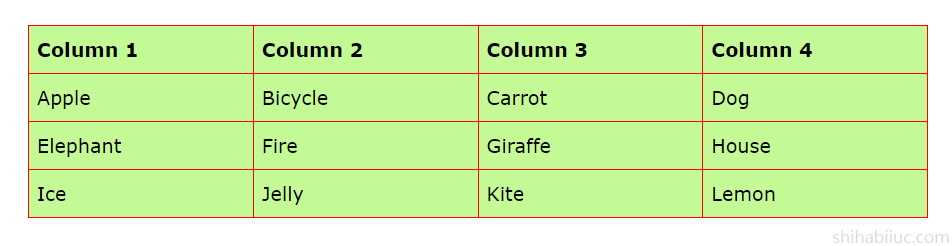
To add background color to the above table, you write the following one line of CSS.
table {
  background-color: #c3fa96;
}
Only with this one line of CSS, the basic table looks like the following screenshot as you see below.
You can add any background color you like. You’re just not limited to using the hex color code. And you can use any color name such as red, green, crimson, darkgoldenrod, etc. Also, you can use other types of colors such as RGB, RGBA, and CMYK (see their examples below).
-RGB colors such as rgb(255, 127, 80), rgb(100, 149, 237), rgb(255, 248, 220), etc. -RGBA colors (semi-transparent) such as rgba(100, 149, 237, 0.5), rgba(255, 127, 80, 0.7), etc. -CMYK colors such as cmyk(0,91,73,14), cmyk(0,0,0,34), etc.
How to be creative with the table background color?
Now you know how to add background colors to the table. You can take things further and make more improvements to your table.
To make a table user-friendly, you can use a slightly different background color (than your table) for the odd or even row. This will make your table more readable and easy to look at. This way, your visitors will not mess up with rows.
You can also add a totally different (or dark) background for the table header.
Lastly, you can use another color for each row while hovering (for highlighting).
These are the strategies that I used on this website. Let’s see how you can do it.
To accomplish all of that, I wrote the following CSS that you can copy & paste into your project. Also, you can make changes to the colors as you see fit.
table {
  border-spacing: 0;
  border-collapse: collapse;
  margin: 0 auto;
  width: 100%;
  max-width: 900px;
  text-align: left;
}
table tr td,
table tr th {
  border: 1px solid #ff0000;
  padding: 12px 8px;
}
table {
  background-color: #e8eaed;
}
table tr {
  -webkit-transition: background-color 0.3s ease-in-out;
  transition: background-color 0.3s ease-in-out;
}
table tr th {
  background-color: #cce6ff;
}
table tr:nth-child(even) {
  background-color: #edf2fa;
}
table tr:hover {
  background-color: #d9dadb;
}
With this CSS in place, your table will look like the following screenshot.
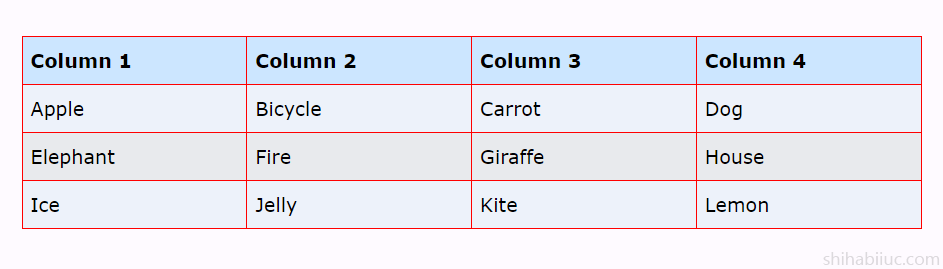
To check the row hover effects, please see this demo again (Example 2).
This is how you can make a table user-friendly, easy to navigate & engaging using background colors.
How to add a background image to an HTML table?
To add a background image to your table, write the one line of CSS as you see below.
table {
  background-image: url(path-to-your-image.png);
}
If you have the image in the “img” folder of your project root and if the image name is texture.png, then the above CSS will be as follows:
table {
  background-image: url(./img/texture.png);
}
With this CSS in place, my table looks like the following screenshot.
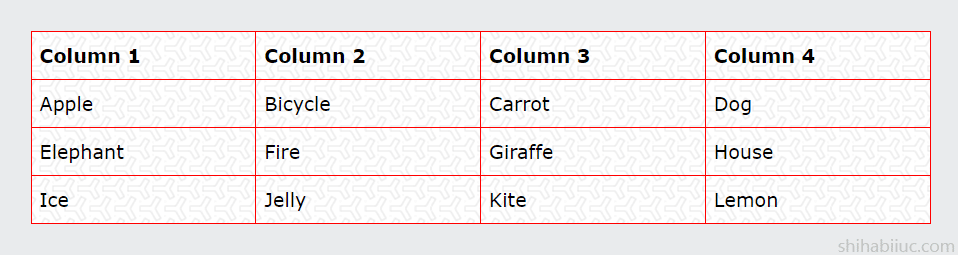
The above CSS will repeat the background image. If you don’t want to repeat, add another 2 lines to your CSS as you see below.
table {
  background-image: url(path-to-your-image.png);
  background-repeat: no-repeat;
  background-size: cover;
}
But you should not use a colorful image for the table background until you’re sure what you’re doing.
When choosing a background image for your table, look for a light color. There are many sources out there where you can grab professional background images.
If you need inspiration and want to download background images, go to Subtle Patterns (it’s free).
And this brings me to the end of this post.
Do you need web design help? Feel free to reach out.
I am a freelance web developer helping other developers, designers, and clients. If you need web design-related help, feel free to reach out to me. Always a reasonable price and easy to communicate with.
You can clone the entire (example) template from your terminal:
git clone https://github.com/shihabiiuc/table-background.gitIf you found this project helpful, please support me by hitting the 'Star' icon on my GitHub Repository. Please use the following link.
Go to the Repository